


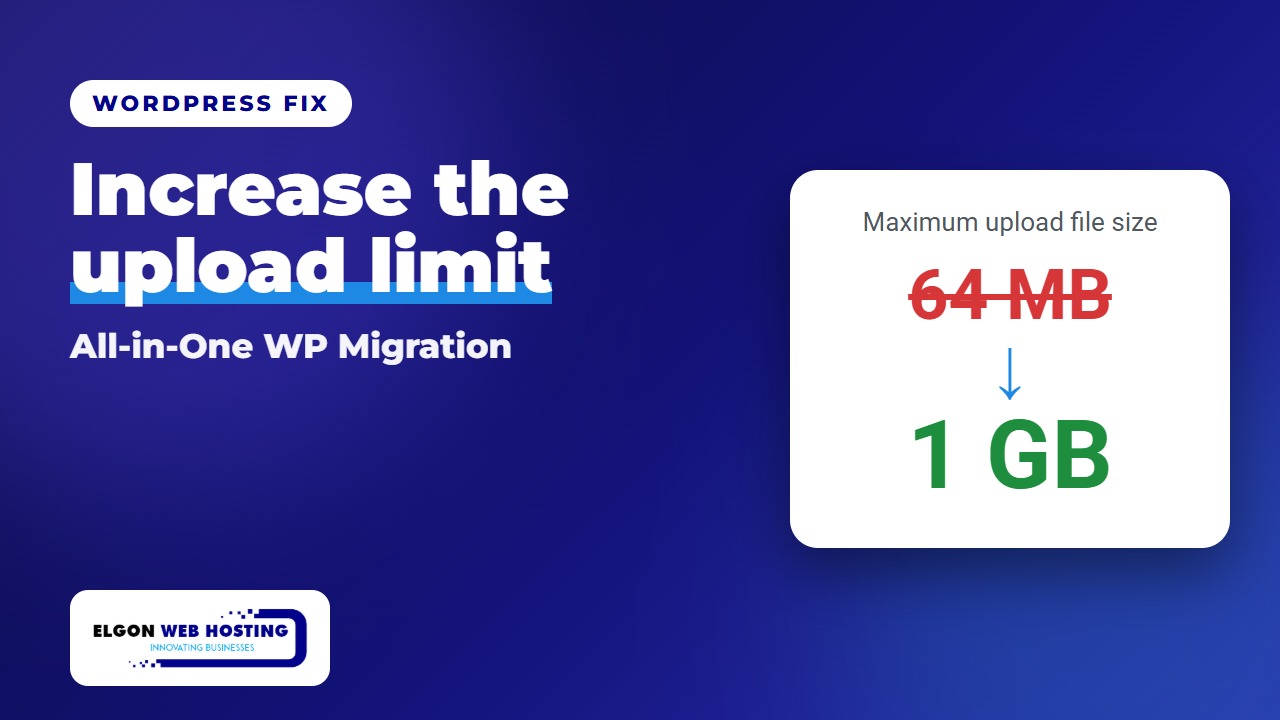
You’re moving a WordPress site with All-in-One WP Migration, you drop in your backup, and the plugin says your file exceeds the maximum upload size. The good news: the limit doesn’t come from the plugin, and you can raise it in a few minutes.
▶️ Subscribe to Elgon Web Hosting on YouTube for more step-by-step tech tips.
Why the limit exists
The “Maximum upload file size” shown on the Import page comes from two PHP settings on your server: upload_max_filesize and post_max_size. The plugin shows the smaller of the two. Older guides tell you to edit AI1WM_MAX_FILE_SIZE in the plugin’s constants.php file, but that trick was removed in newer versions of the plugin, so it no longer works.
Step 1: Check your current limits
In your WordPress dashboard, go to Tools › Site Health › Info and open Server. Look for Upload max filesize and PHP post max size.
Step 2: Raise both limits
Set both values higher than your backup file, with post_max_size a little higher than upload_max_filesize. Use whichever option your hosting supports.
Apache hosting: add these two lines to the end of the .htaccess file in your WordPress folder:
php_value upload_max_filesize 1024M
php_value post_max_size 1100M
Other servers (PHP-FPM or FastCGI): create a file called .user.ini in your WordPress folder with these lines. It can take about five minutes to apply.
upload_max_filesize = 1024M
post_max_size = 1100M
Hosting panel (easiest): in CyberPanel, open PHP › Edit PHP Configs, choose your PHP version and change the two values. In cPanel, use the MultiPHP INI Editor. Many managed hosts ignore .htaccess and .user.ini, so the panel is the safest option.
Step 3: Reload the Import page
Go back to All-in-One WP Migration › Import and refresh the page. The new limit should show under the upload box, and you can import your backup.
Still stuck? Skip the upload
Copy the .wpress file into wp-content/ai1wm-backups using FTP (or SFTP) or your hosting File Manager. Then open All-in-One WP Migration › Backups and click Restore next to the file. This avoids upload limits completely. Some newer free versions of the plugin ask for the paid Unlimited Extension before they will restore from this page.
Two more things to watch
- Cloudflare: if your site runs through Cloudflare, uploads over 100 MB are blocked on the Free and Pro plans. Use the FTP method for big backups.
- Clean up: a
.wpressfile is a full copy of your site. Delete it from the server once the import is done.
Need help moving a WordPress site? Talk to the Elgon Web Hosting team and we’ll handle the migration for you.
Sources: Shameem Reza’s guide and ServMask, the makers of All-in-One WP Migration.