


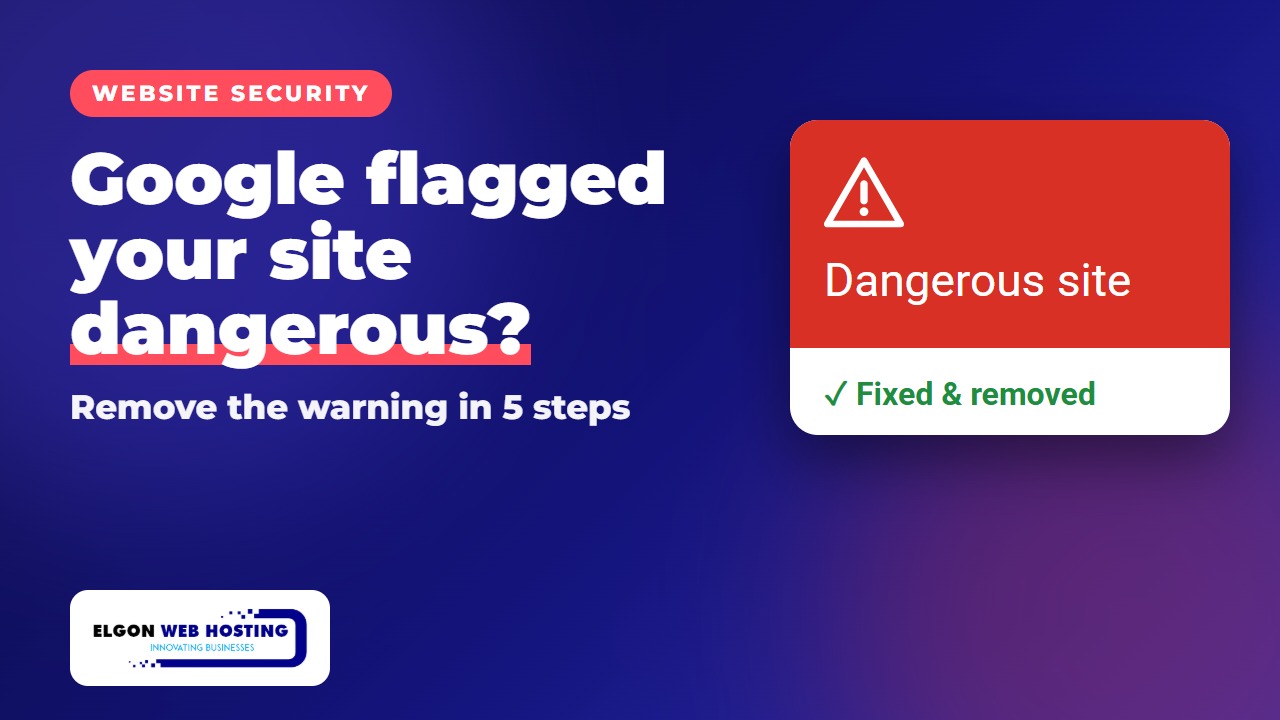
You open your website and Chrome shows a full red screen: “Dangerous site” or “Deceptive site ahead”. Visitors turn back, and enquiries and sales stop. The warning means Google has flagged your site, usually because it was hacked. The good news is that you can get it removed. Here’s how.
▶️ Subscribe to Elgon Web Hosting on YouTube for more step-by-step tech tips.
Why Google flags websites
Google Safe Browsing protects people using Chrome, Firefox, Safari and other browsers. It flags sites that contain malware (code that infects visitors), phishing (fake login or payment pages) or hacked content (spam pages and hidden redirects). Hackers often hide their code so the site looks normal to the owner, which is why many owners only find out when a customer complains.
Step 1: Check the status
Search your domain in Google’s Safe Browsing site status tool. It tells you whether the site is currently flagged, and why.
Step 2: Find the problem in Google Search Console
Add and verify your site in Google Search Console (it’s free). Then open Security & Manual Actions › Security issues. Google lists the type of problem it found and gives sample URLs, which show you where to start cleaning.
Step 3: Clean the site
- Scan the site with a security plugin such as Wordfence, or ask your host to run a malware scan.
- Delete unknown files, especially PHP files inside
wp-content/uploads. - Remove plugins, themes and admin users you didn’t add.
- Check your
.htaccessfile for redirects to strange websites. - If the hack is widespread, restore a clean backup from before the infection.
- Check the sample URLs from Search Console again to make sure they’re clean.
Step 4: Close the hole
If you only clean the site, the hackers can simply come back. Update WordPress, every plugin and every theme. Then change every password: your hosting panel, all WordPress admin accounts, FTP/SFTP and the database (update wp-config.php with the new database password).
Step 5: Request a review
In the Search Console Security issues report, tick I have fixed these issues and click Request review. Briefly explain what you found and what you did, for example: “Removed a malware file and a fake admin user, fixed .htaccess, updated everything and changed all passwords.”
How long it takes
Google says reviews take from a few days to a few weeks. Malware and phishing reviews are often faster. Only request a review once the site is really clean, and don’t resubmit before you get an answer: a request for a site that’s still infected can slow the next review down.
Tip: other security vendors, such as Norton and McAfee, keep their own blocklists. If their warnings remain after Google clears your site, request a review from them as well.
Prevention is cheaper
Keep WordPress and plugins updated, use strong unique passwords with two-factor login, remove plugins you don’t use and keep regular off-site backups. Need help cleaning a hacked website or securing it for the future? Talk to the Elgon Web Hosting team.
Sources: Google Search Console Help: Security issues report, Google Safe Browsing site status and Pressable’s guide to the “Dangerous site ahead” warning.